Why enable 2FA
Two-factor authentication adds a second step after your password, using a code from an authenticator app on your phone.
Enable 2FA
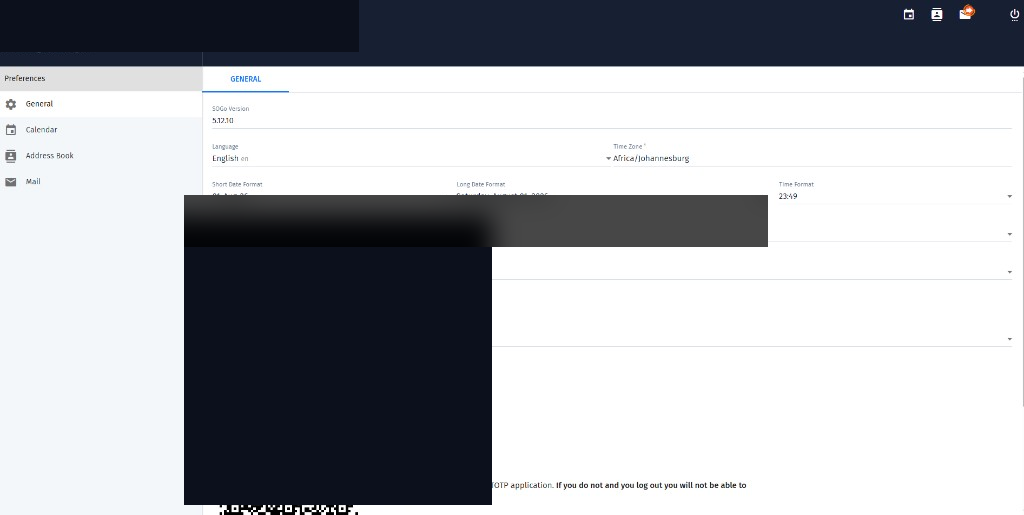
- Open Preferences → General
- Enable two-factor authentication using a TOTP application
- Scan the QR code with your authenticator app (or enter the key manually)
- Enter the verification code shown in the app
- Save changes
Important: Finish setup and confirm the code works before you log out. If 2FA is enabled without a working authenticator entry, you may be locked out until support can help recover access.
The QR code in documentation screenshots is always redacted. Use only the code shown in your own live preferences screen.